
Home/Free RAID Capacity Calculator
Free Tool · Instant Results · All RAID Levels
Free RAID Capacity Calculator
Trying to plan a NAS, server, or data center build without understanding how many usable spaces will be available to you is a very expensive error. Enter the quantity of disks you have, the capacity of those disks individually, and the RAID level, and this calculator will give you your exact usable capacity in less time than it takes to complete a rebuild.
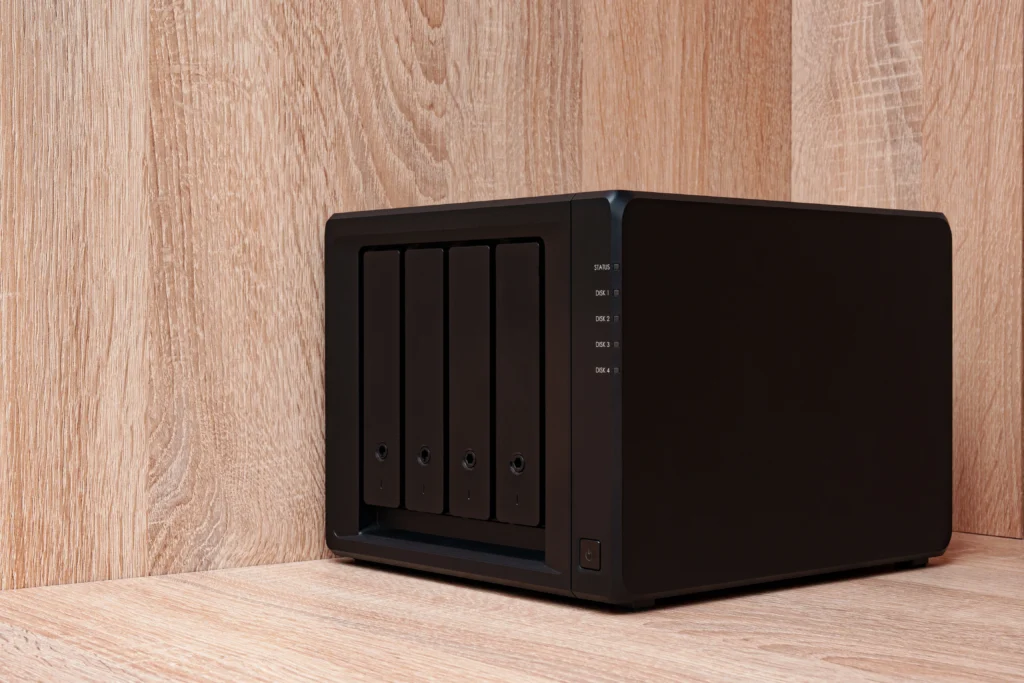
RAID is not a backup. RAID protects against drive failure — not ransomware, accidental deletion, or physical disasters. Always maintain a separate backup alongside your RAID array.
Overview
RAID Disk Space Calculator: Determine Your RAID Configuration
The RAID disk space calculator calculates the usable capacity based upon the total raw capacity of your disks after considering the redundancy overhead. Total raw capacity is the aggregate of all disks. In addition, the usable capacity is the amount of writable space remaining after allocating space for parity, mirroring, or striping within the RAID controller.
For example, if you use four 8TB disks in RAID 5, you’d have 32TB of raw capacity, but approximately 24TB of usable capacity. The 8TB difference isn’t “waste” — it’s the additional layer of fault tolerance protecting your storage pool from becoming unavailable due to a failed disk.
Reference
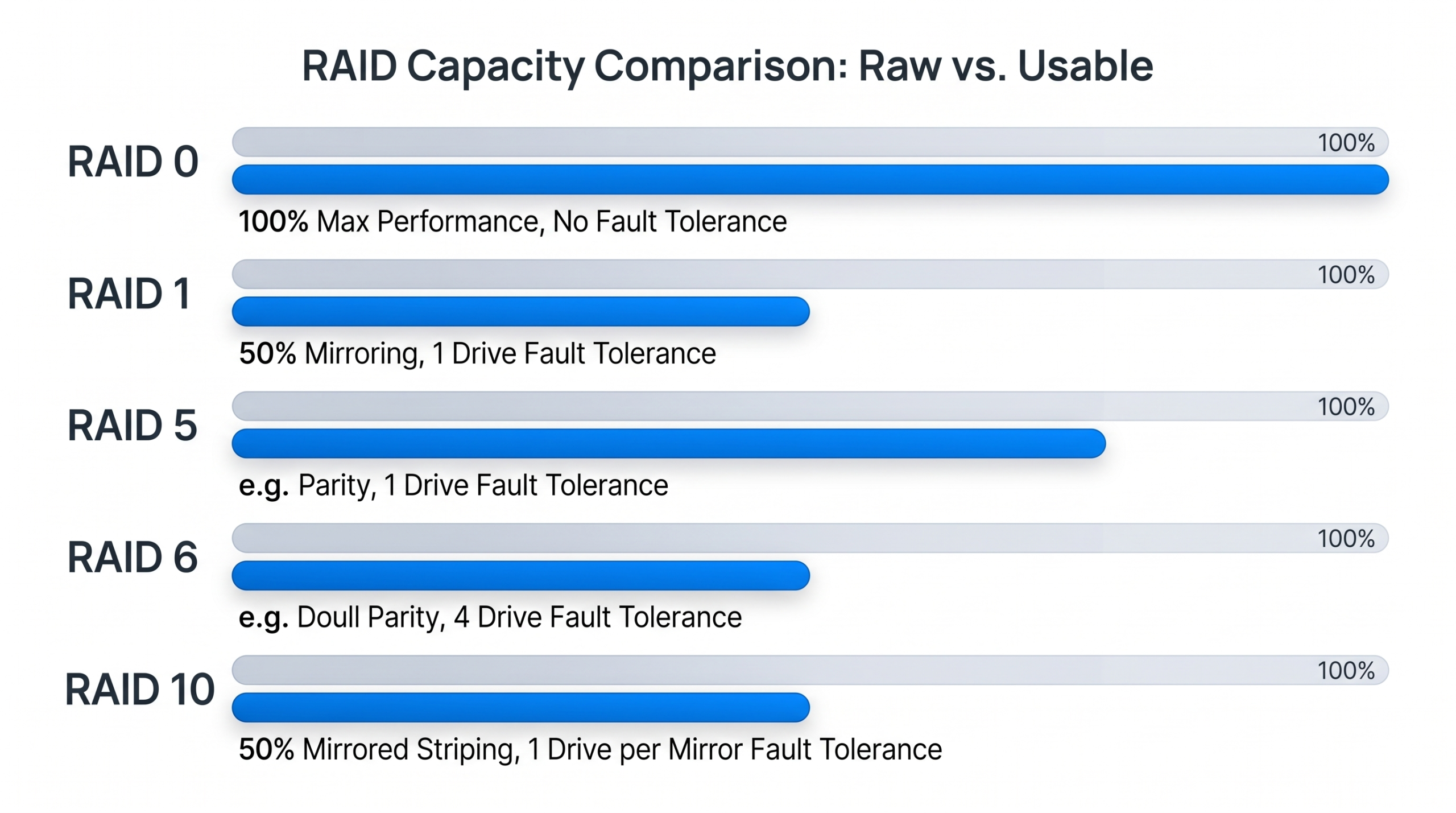
RAID Levels at a Glance
RAID levels 10, 50, and 60 require an even number of drives. RAID 50 and 60 additionally require a minimum of six and eight disks respectively, grouped as sub-arrays. These levels are standardized by the Storage Networking Industry Association (SNIA) under the Common RAID Disk Drive Format specification.
Calculations
Utilizing a RAID Disk Space Calculator
RAID 5 — Striping + Parity
(n − 1) × disk_size
Distributes parity across all drives. Three 8TB drives yield 16TB usable; six yield 40TB. Survives one drive failure — a second failure during rebuild takes down the array.
RAID 6 — Double Parity
(n − 2) × disk_size
Six 12TB drives yield 48TB usable with two-failure tolerance. The bare-minimum recommendation for arrays using HDDs larger than 4TB, where rebuilds can take 15–72 hours.
RAID 10 — Mirror + Stripe
50% of raw capacity
Mirrored pairs, striped together. Four 10TB NVMe disks yield 20TB usable with the best sequential read/write of any redundant RAID level — the default for database and AI/ML workloads.
RAID 0 — Striping Only
n × drive_size
No redundancy, 100% of capacity used. Maximizes bandwidth but a single drive failure destroys all data. Use only for scratch storage or temporary caches.
RAID 50 — RAID 5+0 Nested
Varies by group
Configures disks as RAID 5 sub-arrays, striped together. Six 8TB disks in two groups yield 32TB usable, with faster rebuilds than one flat six-disk RAID 5.
RAID 60 — RAID 6+0 Nested
Varies by group
RAID 6 sub-arrays striped together. Eight 20TB disks in two groups yield 80TB usable with double-parity protection per group — common on enterprise 10GbE backup servers.
How to Use
Steps for Using the Calculator
Select drives
Enter total disk count and capacity in TB (use the labeled drive capacity, not OS-reported TiB).
Choose RAID type
Pick based on your fault tolerance and performance requirements.
Verify usable capacity
This is your actual writable storage space, after parity/mirroring overhead.
Consider the OS gap
Windows and Linux read storage in binary — a labeled 10TB drive displays as about 9.09TiB, roughly 9% less than the decimal value.
Designate a hot spare
If your controller supports it, a hot spare automatically replaces a failed disk and begins recovery with no manual action.
Use Cases
Real-World Examples by RAID Level

Home NAS
RAID 5 is the most common choice — four 8TB NAS drives give 24TB usable with one-drive failure protection, ideal for a media server or personal backup.

Small/Medium Business
RAID 6 on NAS HDD or SSD protects against two simultaneous failures. Six 12TB drives give 48TB usable with no catastrophic loss risk mid-rebuild.

Performance Workload
RAID 10 with NVMe SSDs is the top performer for IOPS and rebuild speed — four drives give 50% usable capacity with near-RAID 0 speed and RAID 1 resilience.

Enterprise SAN & Data Centers
RAID 60 across 8–12 enterprise HDDs provides distributed performance with double parity per group — critical when simultaneous failures are a real risk.

AV Network & Content Production
RAID 5 and RAID 10 with SSD arrays handle multi-stream video editing, where storage bandwidth matters more than raw disk count.
Mixing Drive Sizes: What You Must Understand
All standard RAID levels treat all drives equally regardless of individual capacities — adding a 4TB and an 8TB drive together permanently wastes the unused capacity of the larger drive. Platforms such as Synology SHR and UnRAID allow mismatched drive capacities without creating waste, ideal for expanding a NAS storage pool over time by swapping in larger drives incrementally.
Cost Analysis
Usable vs. Raw Capacity Ratio
Example based on four 8TB drives (8TB × 4 = 32TB raw):
RAID 5 offers the best cost-per-usable-TB for arrays up to five or six drives. RAID 6 and RAID 10 both offer stronger redundancy — RAID 6 through double parity, RAID 10 through mirroring with a speed gain — but each requires roughly double the storage overhead of RAID 5.
Comparison
RAID vs. JBOD
JBOD, a non-RAID storage option, uses every available bit of disk capacity — no overhead, no protection. It concatenates drives into one volume or uses them independently. Use JBOD only when data is backed up separately or loss would be acceptable: archival drives, test environments, secondary storage. Unlike any RAID array, JBOD has zero data-recovery options when a disk fails.
Best Practices
Configuring Hot Spares
A hot spare sits idle on a RAID controller until a disk fails, then automatically steps in and begins rebuilding — zero downtime, zero manual intervention. When using six or more disks, a dedicated hot spare is highly recommended; size it to match the largest data disk in the pool, since smaller spares can’t protect every array member.
FAQ
Frequently Asked Questions
What is fault tolerance in RAID?
It’s how many drives can fail before you lose data. RAID 5 survives one failure; RAID 6 survives two; RAID 10 survives one per mirror pair. RAID protects against drive failure, not operator error or non-disk disasters — always maintain a separate backup.
Does RAID make my read/write speed faster?
Only RAID 0 and RAID 10 meaningfully improve speed via striping. All other RAID levels protect data but incur a write penalty, since multiple disks must write parity information.
Will RAID work with an odd number of drives?
Yes for RAID 5 (3+ drives) and RAID 0/1. RAID 6 needs 4+, and RAID 10 needs even pairs of matching drives.
How much usable storage will I get from RAID 5?
Use (n − 1) × drive size. Five 6TB drives in RAID 5 yields approximately 24TB usable.
Which RAID level offers the best data protection?
RAID 6 for traditional HDD arrays, since it survives two failures during a lengthy rebuild. RAID 5 is usually sufficient for SSD arrays, which rebuild in minutes rather than hours.
What is the difference between RAID 0 and RAID 1?
RAID 0 stripes data for maximum performance and capacity with zero redundancy. RAID 1 mirrors data, halving usable capacity but surviving the failure of either disk — opposite ends of the performance-vs-protection spectrum.
How does JBOD work and when should I use it?
JBOD connects drives individually or chains them into one volume with no parity or mirroring. Use it only when drives are backed up separately, such as for archival or cold storage.
What is a hot spare in RAID?
An unassigned standby disk attached to the controller. On any drive failure, the controller automatically assigns the hot spare and begins rebuilding — no user intervention required.
What is a RAID storage calculator?
A tool that computes your usable capacity based on disk count, individual drive capacity, and selected RAID level, accounting for parity, mirroring, or striping overhead — enter your inputs and it instantly returns usable capacity, fault tolerance limits, and redundancy details.
What is the maximum bandwidth of PCIe 3.0?
PCIe 3.0 delivers about 1GB/s per lane — a standard x4 NVMe slot provides up to ~3.94GB/s sequential throughput. PCIe 4.0 doubles that to ~8GB/s per x4 slot. For RAID 10 NVMe arrays, lane count and generation are the primary ceiling on total array bandwidth.
Summary
Which Configuration Is Right for You?
Home Users
Want single-drive fault tolerance and efficiency? Use RAID 5 for your home NAS build.
Business-Critical Apps
Need uptime despite slow HDD rebuild times? Use RAID 6 for business-critical applications.
High-Speed Performance
Need high-speed read/write with redundancy? Use RAID 10 for performance-critical applications.
Data Backup Strategy
RAID protects against drive failures, not ransomware or accidental deletion — always run a separate backup plan alongside it.